
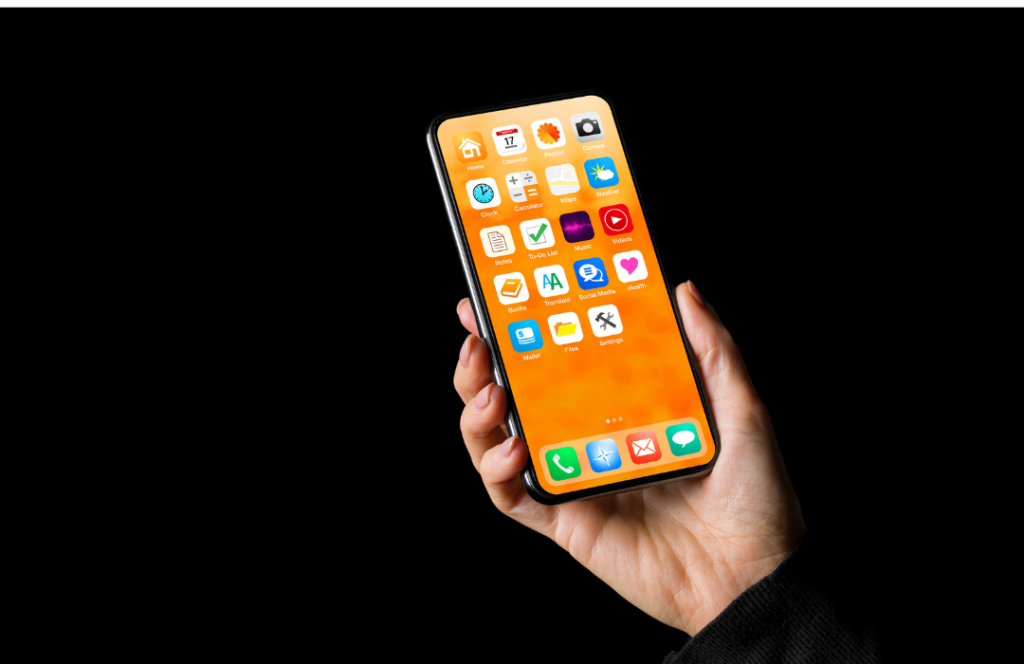
If you’ve recently started using an Android phone — or simply want to feel more confident with yours — this FAQ is a great place to begin. Designed especially for seniors and anyone new to smartphones, it answers common questions in plain, easy-to-follow language. From turning your phone on and off to connecting to Wi-Fi, adjusting the volume, and setting up Bluetooth devices, each step is explained clearly so you can take control of your phone without frustration. Whether you’re exploring your Android for the first time or brushing up on the basics, this guide will help you use your device with confidence every day.
Q: How do I turn my Android phone on and off?
- Hold the Power button (usually on the right-hand side) until the screen lights up.
- To turn it off, hold the Power button again and tap Power off or Shut down.
- Some phones also show a Restart option — use that to reboot instead of turning off completely.
Q: How do I unlock my Android phone if I forget my PIN or password?
- Try your usual PIN or pattern first.
- If you’ve forgotten it, tap Forgot PIN? or Forgot pattern? if shown.
- Sign in with your Google Account to reset it.
- If you can’t, you may need to factory reset your phone (you’ll lose data, so this should be a last resort).
Q: What’s the difference between the Home, Back, and Recent Apps buttons on my Android phone?
- Home: Takes you back to your main home screen.
- Back: Takes you back one step or closes the current app.
- Recent Apps: Shows a list of open apps — swipe up or sideways to close them.
Q: How do I find out what version of Android I have?
- Open Settings → About phone → Android version.
- You’ll see your version number (e.g. Android 12 or Android 13).
Q: What does “Google Account” mean and do I need one?
- It’s your login for Google services (Gmail, YouTube, Play Store, etc.).
- You need it to download apps and back up your phone.
- Create one at accounts.google.com or during phone setup.
Q: How do I make the text larger or easier to read on my Android phone?
- Go to Settings → Display → Font size or Display size.
- Slide the bar to make text and icons larger.
- You can also use Settings → Accessibility → Text and display → Font size for finer control.
Q: How do I connect my Android phone to Wi-Fi?
- Go to Settings → Network & Internet → Wi-Fi.
- Turn Wi-Fi on.
- Tap your home network name.
- Enter the password and tap Connect.
Q: How do I connect my Android phone to Bluetooth (for hearing aids, speakers, etc.)?
- Turn on your Bluetooth device (put it in pairing mode).
- On your phone, go to Settings → Connected devices → Bluetooth.
- Turn Bluetooth on, wait for your device to appear, then tap it to pair.
Q: How do I change the ringtone or notification sound on my Android phone?
- Go to Settings → Sound & vibration → Phone ringtone.
- Choose a ringtone and tap OK or Apply.
- You can also set Notification sound separately for texts or apps.
Q: How do I make my Android phone ring louder?
- Use the Volume Up button on the side.
- You can also adjust under Settings → Sound & vibration → Volume.
- Turn off Do Not Disturb if enabled (it silences calls).
Technology doesn’t have to be confusing or frustrating — help is only a phone call away. Whether it’s your computer, Wi-Fi, or smart devices giving you trouble, Senior Tech Assist is here to make things simple again. Get friendly, reliable support right in your own home — no call-out fees, no tech talk, just patient guidance that gets everything working properly.
📞 Call 0456 476 470 today or click below to enquire:

I started this service after seeing how many older Australians struggle with technology — not because they can’t learn it, but because no one takes the time to explain it properly. With more than 20 years’ experience in digital technology and online training, I wanted to create something patient, local, and genuinely helpful.